Friday dinner
With friends
Where should we eat on Friday?
Message…
qaction.si/v/demo-lunchQaction keyboard
You ask Qaction
Create a poll for Friday’s team lunch.
Ready to share
Thai
Japanese
qaction.si/v/demo-lunchOne link. Everyone gets a vote.
Prepare replies, get things done and keep context across apps. You stay in control.
Press the Qaction key or paste a conversation screenshot. Your personal agent prepares replies and supported actions using built-in tools or accounts you connect. Review the result, insert it, then send it yourself.
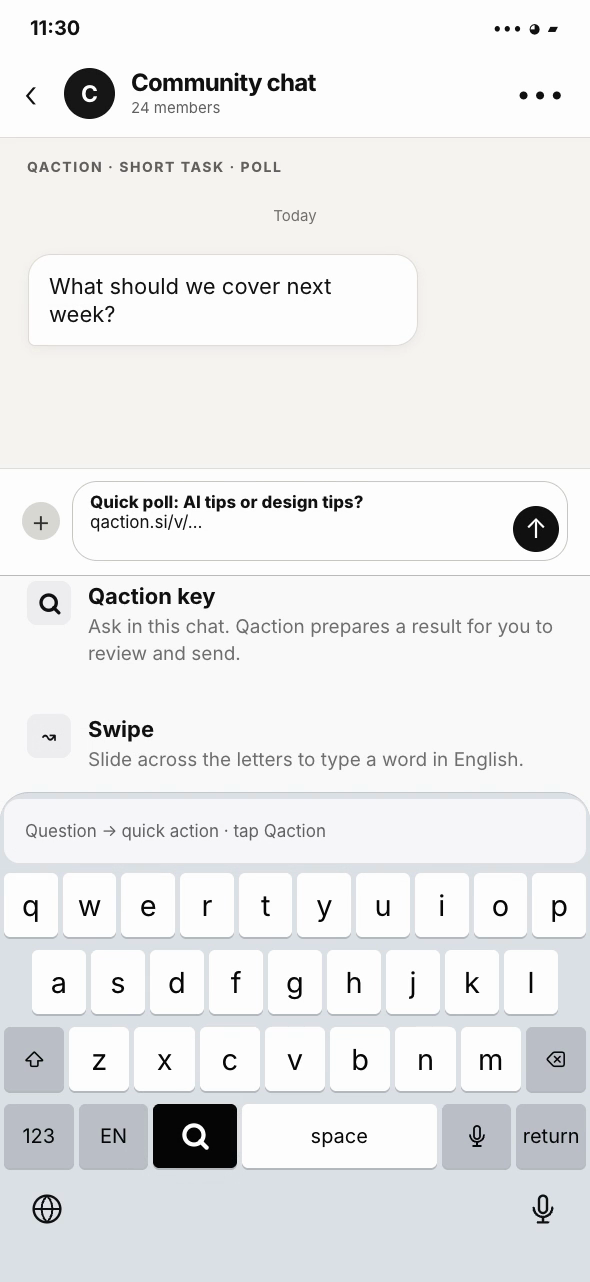
Ask the group whether to cover AI tips or design tips. Qaction prepares a poll link in the chat draft, ready for you to review and send.
Most actions and features are built into Qaction. No need to connect other accounts.
A dinner with friends. A call with a client. Your next community event. Start with a sentence or a screenshot, then share something everyone can use.
Start with a sentence or a screenshot. Explore the built-in apps below; external calendar examples require a connected account.
Split HK$840 equally between four of us. I paid.
A shared breakdown with each person’s amount and payment status. You confirm receipt yourself.
Read this lunch receipt and prepare an expense.
A draft with the amount, merchant and category. Confirm to save; view monthly totals and export CSV.
Find the contract PDF and prepare a sharing link.
Upload files on iPhone or the web, then find and share them from the keyboard. Links can expire or be revoked.
Ask the group: AI tips or design tips next?
Qaction creates a live poll link, ready to insert.
Invite everyone to Friday's Q&A.
An RSVP page and a ready-to-send invitation.
Collect dietary preferences for Friday’s lunch.
A short form link for everyone to fill in privately.
Offer Friday at 14:00 and 16:00 for booking.
A booking link for those two times, with one person per slot.
Make a room for a quick call.
A browser meeting link in the chat draft.
Put Friday's briefing in my Qaction calendar. Remind me an hour before.
A private Qaction calendar note and reminder; the chat reply says it is on your calendar.
Make a shared checklist for the event setup.
A checklist link for the team to tick off and track progress.
Turn the kickoff agenda into a shareable page.
A hosted agenda page, ready to share by link.
Check the stage and value of the Acme website design deal.
The built-in CRM finds the stage and amount for a reply you review.
Find Maya’s latest email and draft a reply.
Read, search, compose and reply in your @mail.qaction.si inbox. Receiving and sending require mail service activation; connected mail accounts are another option.
What did I do for this audience on Tuesday?
A report from Qaction's searchable requests and actions, with times and links.
Check my Feishu calendar and share three free times this week.
Qaction uses Feishu free/busy data to draft three available times for review.
Illustrative prompts and results. You review each draft before sending.
Find past requests and actions with their times and links. Open an app or item’s activity record to see who created, changed or responded to it.
Illustrative records · Select a marked date to explore
Send-key recording is opt-in. A key press is recorded; delivery by the IM app is not verified. Messages sent with another keyboard or the app's own Send button are outside this record.
Watch a simple task move from a request to a link ready to share.
Concept animation, not a benchmark. Times are scenario estimates for a signed-in user, complete details and one simple task, including setup and review but excluding the recipient’s response. Actual time varies by tool, network and task. Playback is compressed, not real time.
Most short requests return in about 3 seconds in our tests. If the work needs longer, Qaction prepares a ready-to-send progress link first. The page updates as work continues and shows the finished result, so the chat need not wait.
Example message. You choose whether to send it.
One link, from progress to result.
This page updates as the work continues. Come back to this same link for the result.
A few simple ways to feel at home and join the conversation.
Share your name, what you’re working on and one thing you’d like to learn.
Find a topic you care about. Add a question or a useful resource, and respect other members’ privacy.
Check the event details and RSVP. Bring a question or an experience you’d like to share.
Illustrative result preview. Switch between progress and completion; no task is started or message sent.
No app and no account. Real pages from the live service: a poll before and after a vote, and a shared quotation.
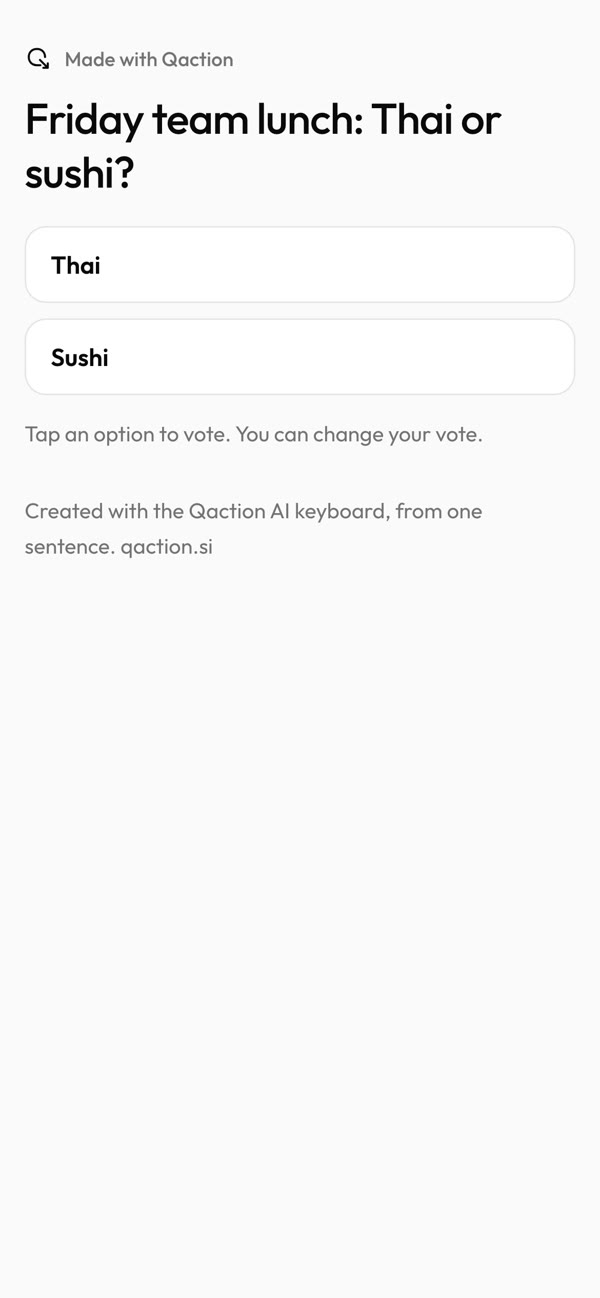
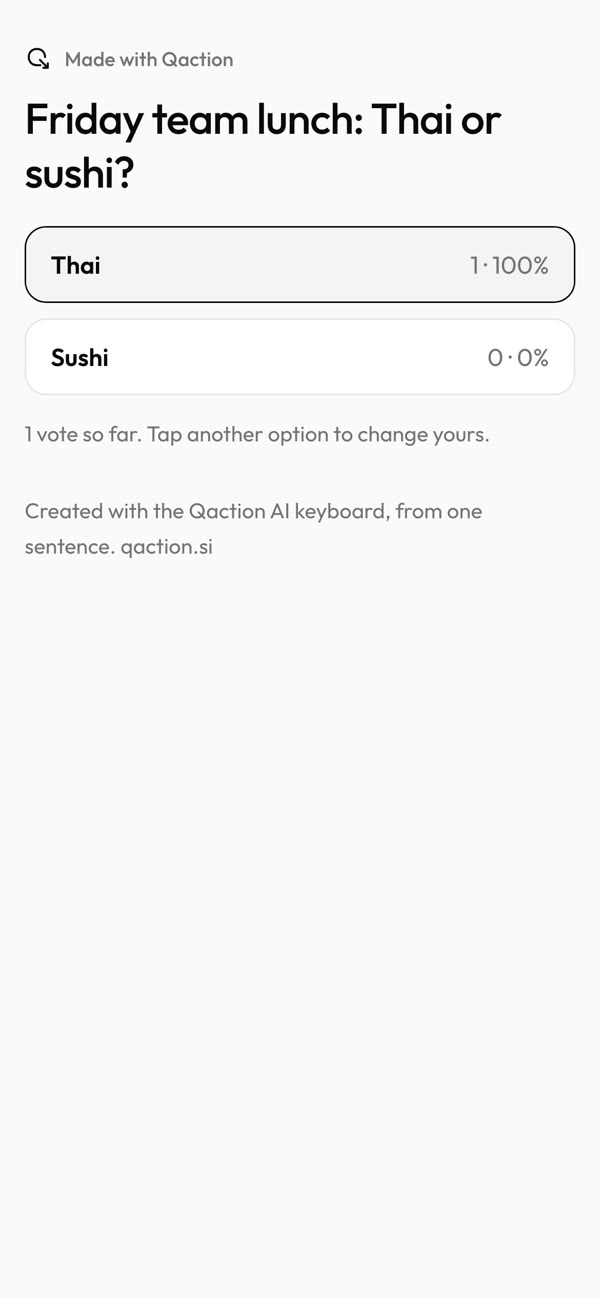
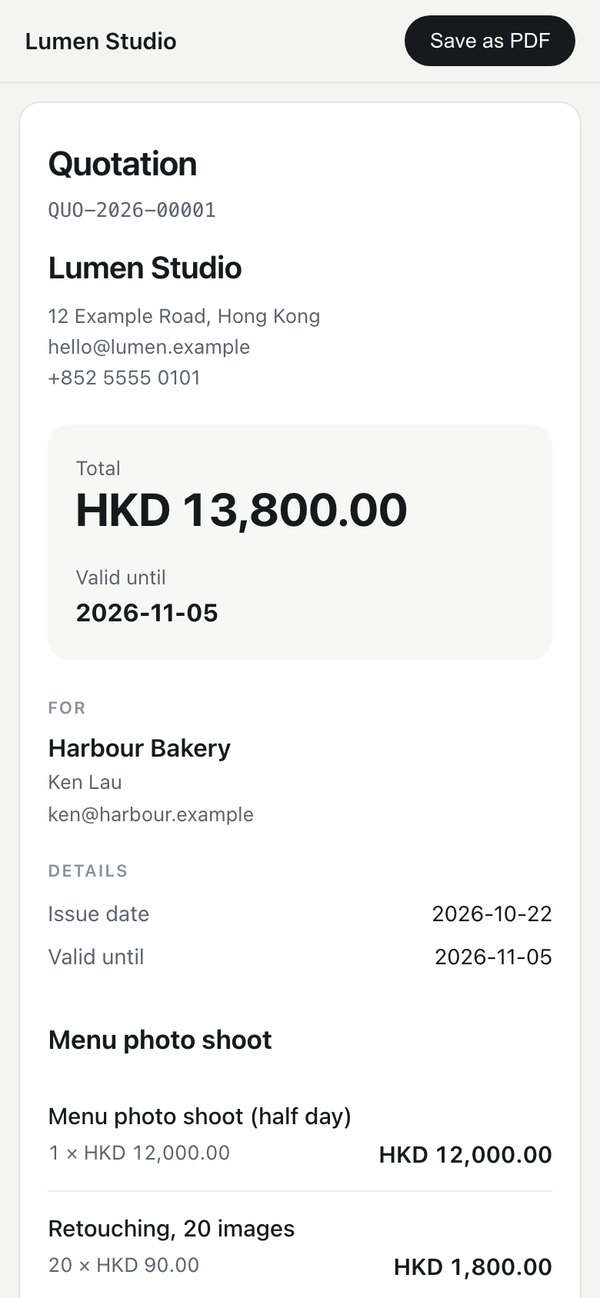
Zapier connects your apps so work can flow between them, once you set it up. Personal agents such as Muse, Grok Bot and ChatGPT dot work across the tools you connect. Typeless is a voice AI keyboard for writing in place. Qaction does the task itself with built-in apps, from the keyboard in the chat you are already in.
Swipe sideways to see the full table →
| Dimension | Personal agents · Muse / Grok Bot / ChatGPT dot | Voice AI keyboard · Typeless | Qaction keyboard |
|---|---|---|---|
| Main job | Persistent work across connected tools | Voice input, writing and AI answers in place | Quick audience actions and replies in chat |
| Where you ask | Agent chat or supported message channel | A supported text field | Keyboard in the current chat app |
| What the recipient gets | Depends on the task and channel | Text you choose to send | A ready-to-send reply or action link at the cursor |
| Continuity | Each agent's own task history and memory | Output in the host app; Typeless says it retains no voice or dictated content | One cross-app history of Qaction requests, actions and opted-in Send-key records |
Product-positioning comparison, not a performance test. Features vary by service and permission. Qaction does not verify delivery by another chat app.
Official product pages: Muse · Grok Bot · ChatGPT dot · Typeless
Most actions and features are built into Qaction. No need to connect other accounts.
Works with your favourite services
Act from your keyboard, then let Qaction prepare recurring work, your daily brief and timely follow-ups.
Prepare before a meeting. Notice a customer follow-up that is due. Revisit a deal without recent updates. Each suggestion explains why it appears and links to its source.
Uses your Qaction calendar and CRM. Keyboard commitments are considered only when you enable their recording and follow-up suggestions.
This CRM follow-up is due today. Review the next step before contacting the customer.
Prepare a draft, create a reminder, snooze or dismiss. Turn off individual situations or reduce daily suggestions.
Ask for a CRM follow-up list every workday, or a weekly deal review. Check the instruction, sources, time and time zone before enabling. Qaction prepares summaries and drafts in the background.
Qaction calendar, tasks and CRM are built in. Email and external calendars need a connected account.
See the next run and past results. Try now without changing the schedule. Edit, pause, resume or delete at any time.
Bring together your calendar, overdue tasks, customer follow-ups and important open deals. Choose the time, workdays or every day, sources, language and detail.
The AI brief starts off. On scheduled days it replaces the calendar-only summary while keeping your original summary preference. Every result retains its generation time and sources.
Calendar · 10:30 project review
Tasks · Confirm the meeting agenda
CRM · Contract follow-up due today
Disconnected or unavailable sources are marked as such. They are never presented as an empty day.
iPhone simulator captures using sample data and real AI results. Background notifications are still being tested.
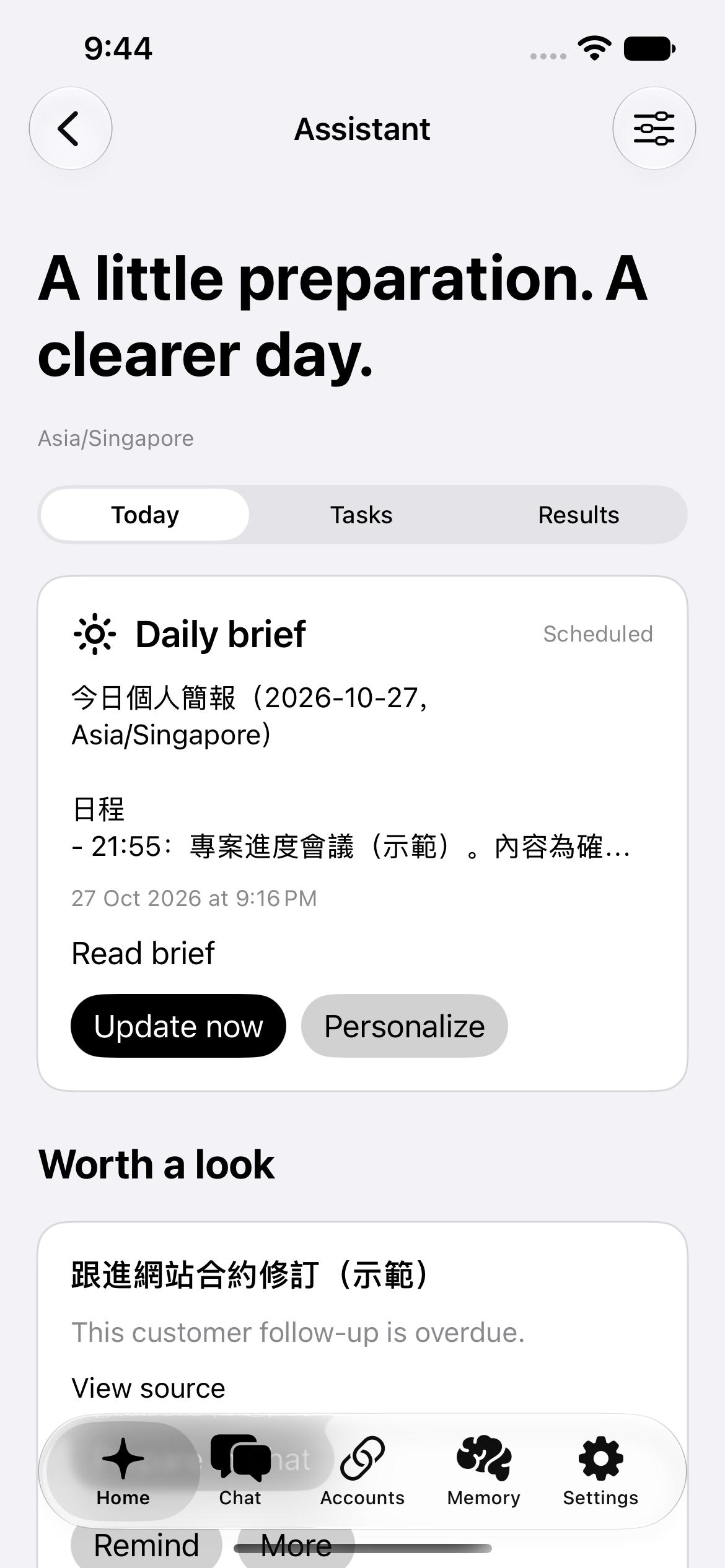
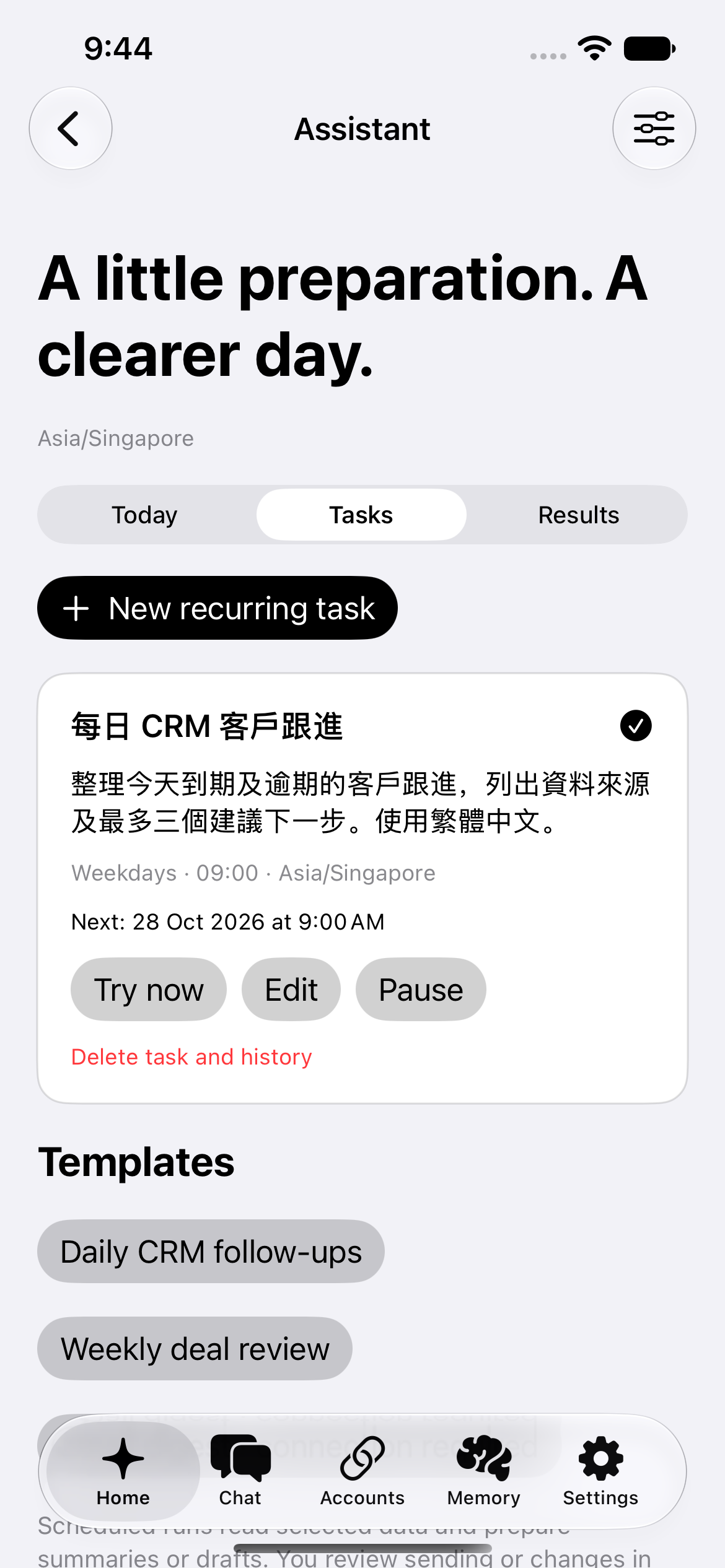
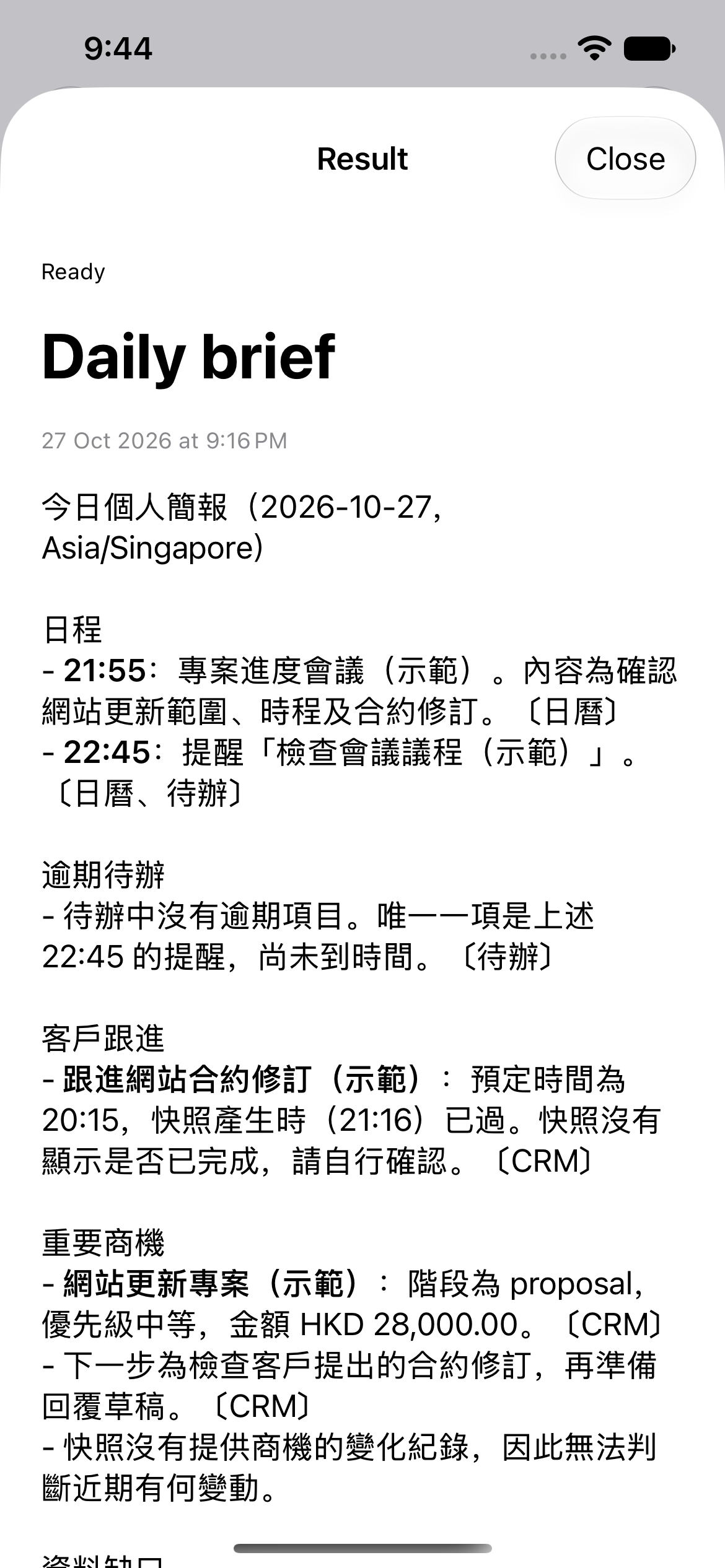
Server-side schedules can prepare results while your app is closed. Reading them does not require push. Background iPhone delivery depends on configured APNs, a registered device and notification permission; it is tested separately.
Scheduled tasks only read selected sources and prepare summaries or drafts. Open Chat to review any sending, booking or calendar change.
Choose sources, enable or pause the assistant, set account-local quiet hours and adjust each suggestion type. Only your account’s authorized data is used. Results are private.
The current Beta features allow 10 recurring tasks, 20 runs per account-local day, US$5 in model cost per month and a 60-second execution limit. These are preview safeguards; public plan pricing is not being announced.
Beta features are gradually opening to testers on the web and iPhone. Background iPhone notifications are still being tested. Android and desktop users can open the private web assistant.
Open private assistantLeave your email to request a place. Invitations are currently issued manually.
PLATFORMS
Already have a code? Create your account · Get Qaction for iOS

 iOS
iOS